How do I get a WhatsApp number for Qnect?
If you do not have a WhatsApp number yet, you will find the link to add it on your dashboard homepage. Once clicked, Qnect will generate a virtual phone number for you. Qnect will show you Meta's onboarding steps, which you can see below.
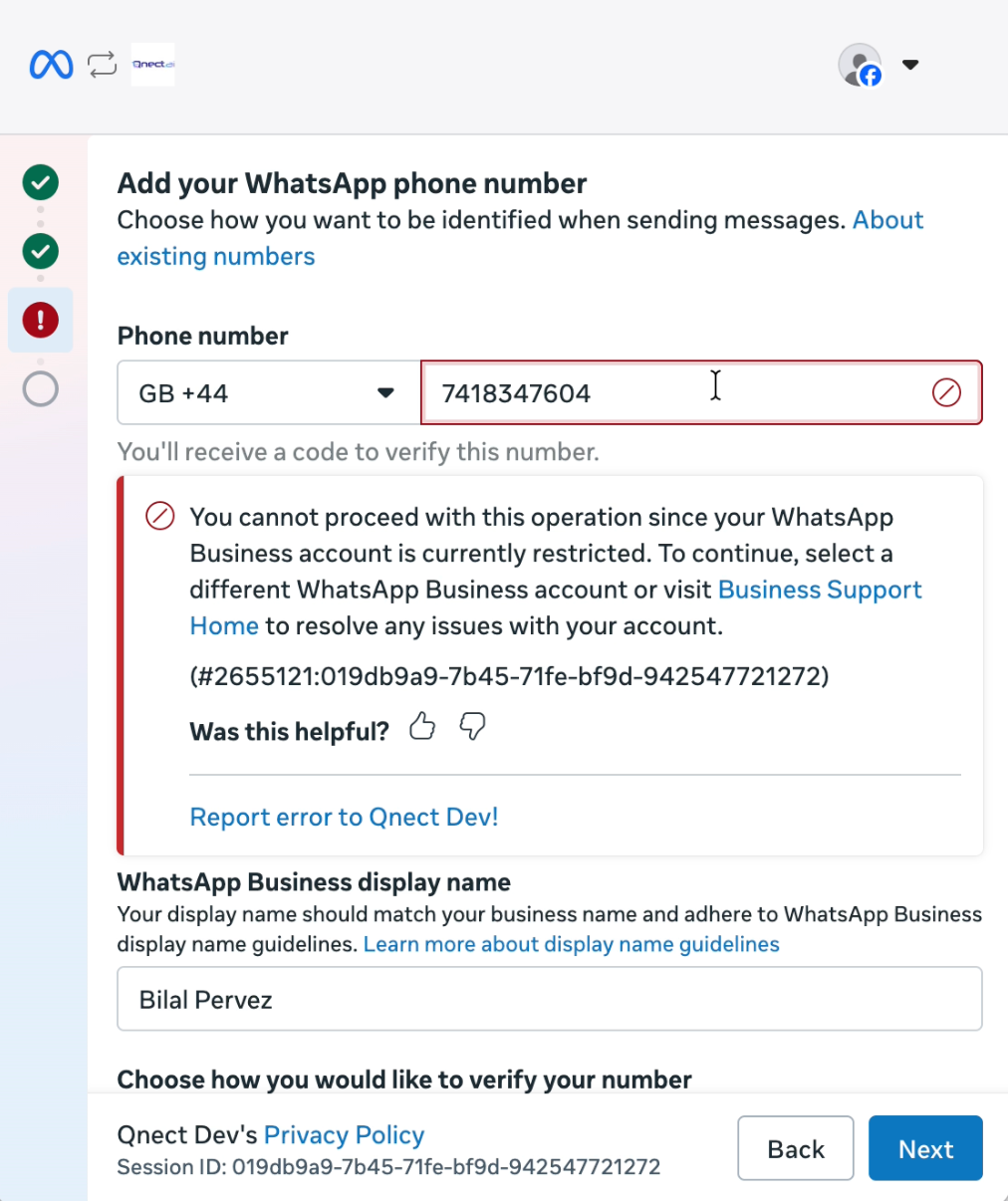
If you see a generic error at this stage, your account has been automatically flagged by Meta. You will receive an email by Meta (check spam!) to learn how to verify your business.
Click the "Connect to WhatsApp" button below.
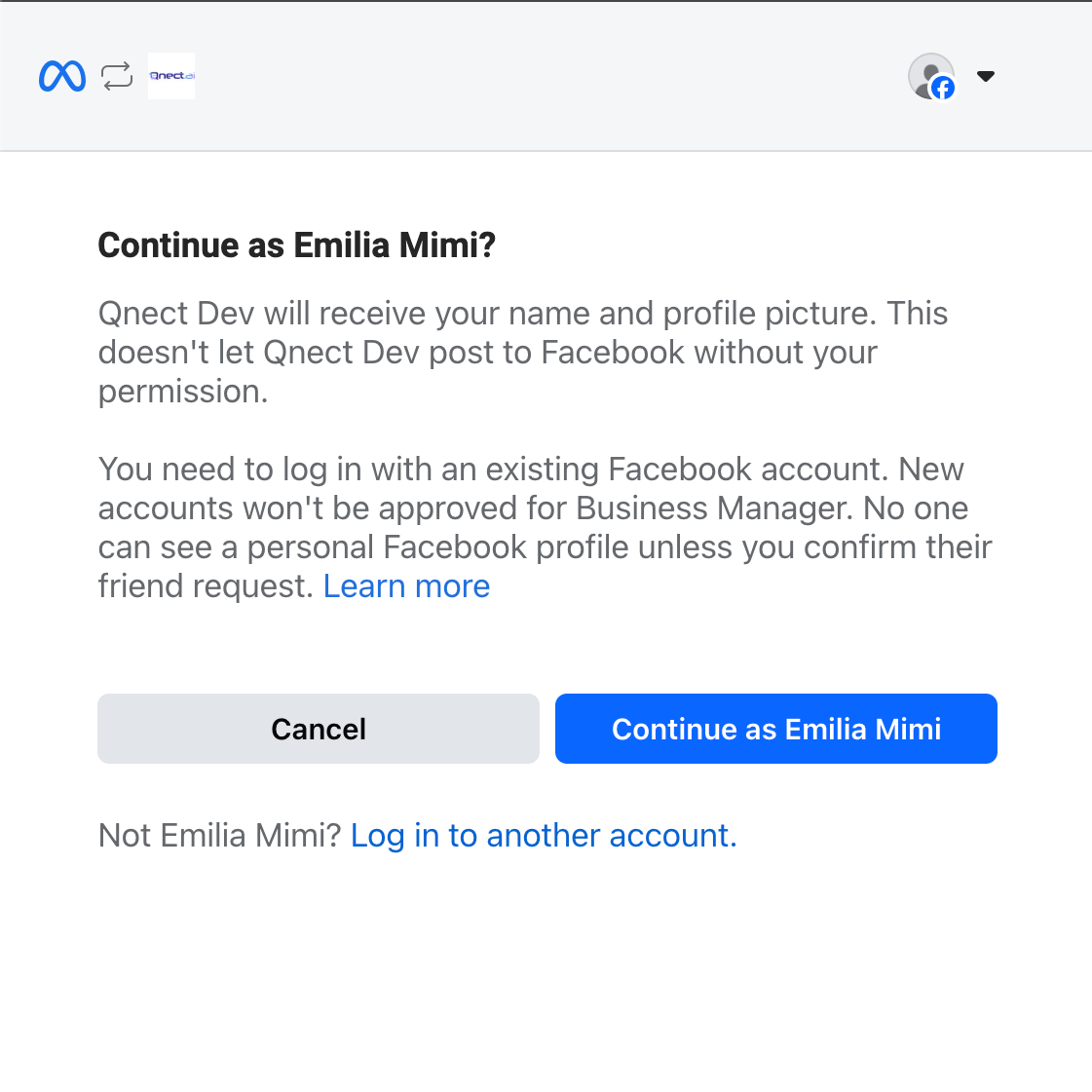
A popup from Meta will appear. If you don't see it, check your other windows or allow pop-ups for this site.
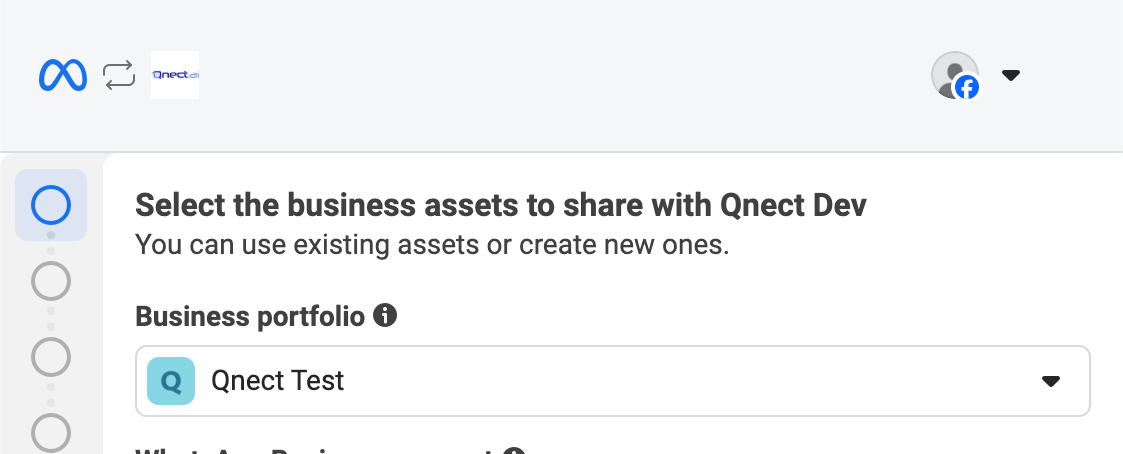
A Business Portfolio is where your business assets (like WhatsApp accounts and pages) are managed. Create a new one or select an existing portfolio to continue.
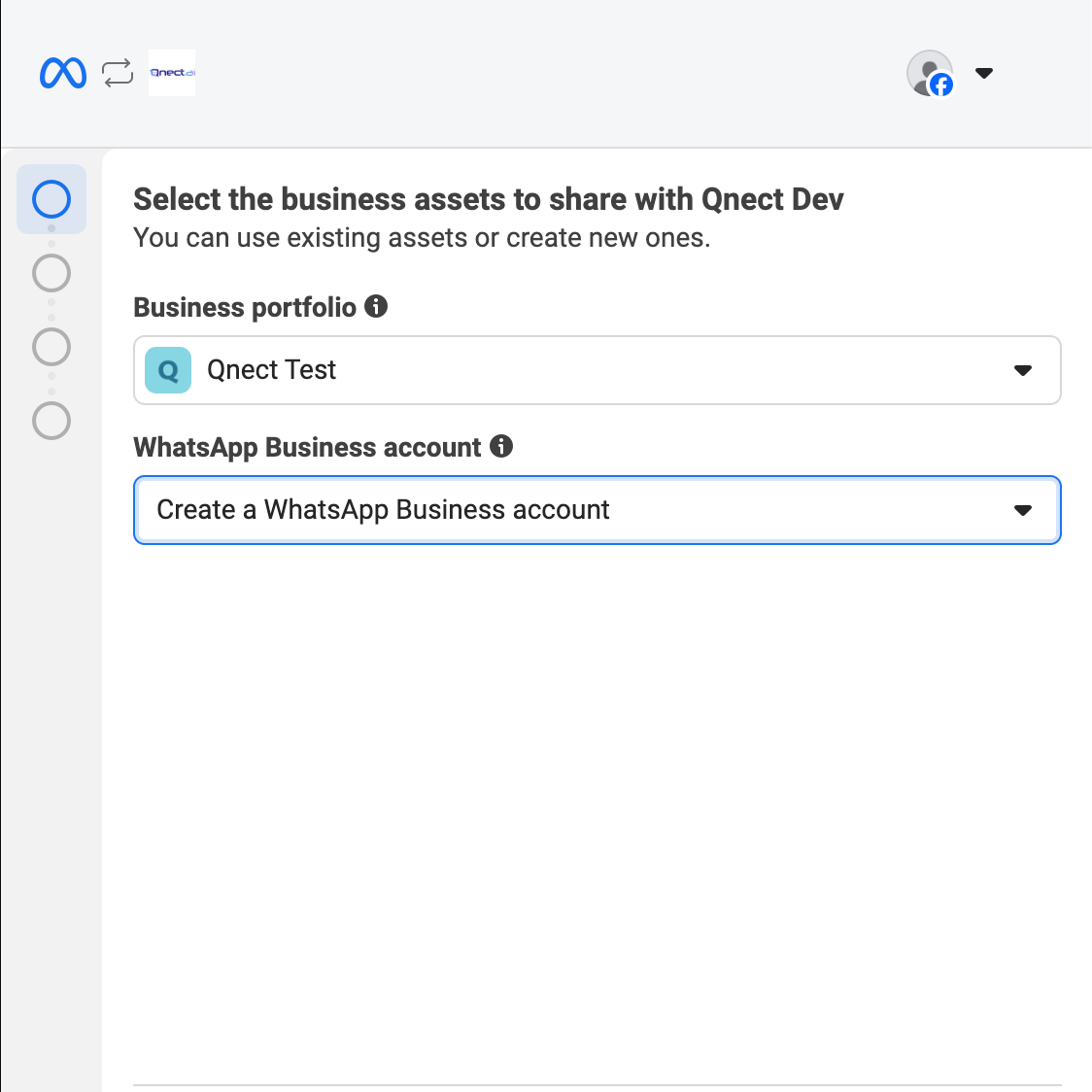
Select 'Create a WhatsApp Business account' to proceed.
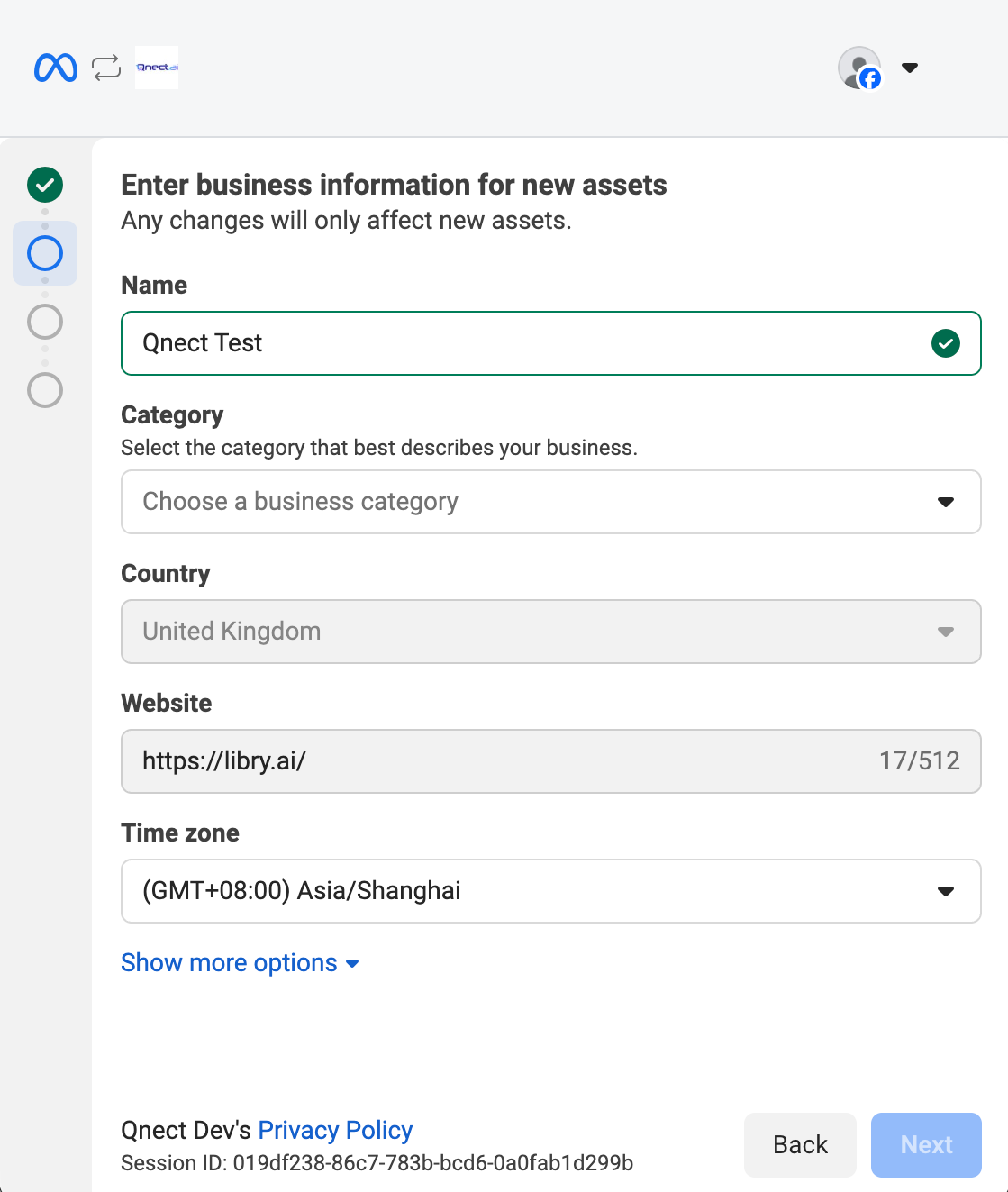
Enter your business information for the new account. Double-check all details before submitting, as this information will be used for verification.
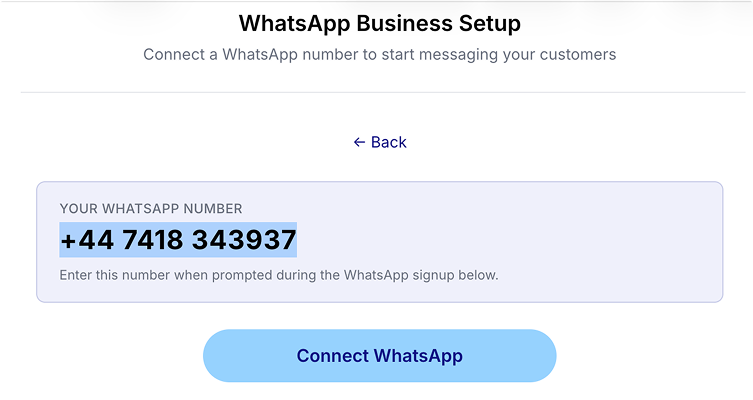
Click the provided phone number to copy it, then paste it during the WhatsApp signup process when prompted.
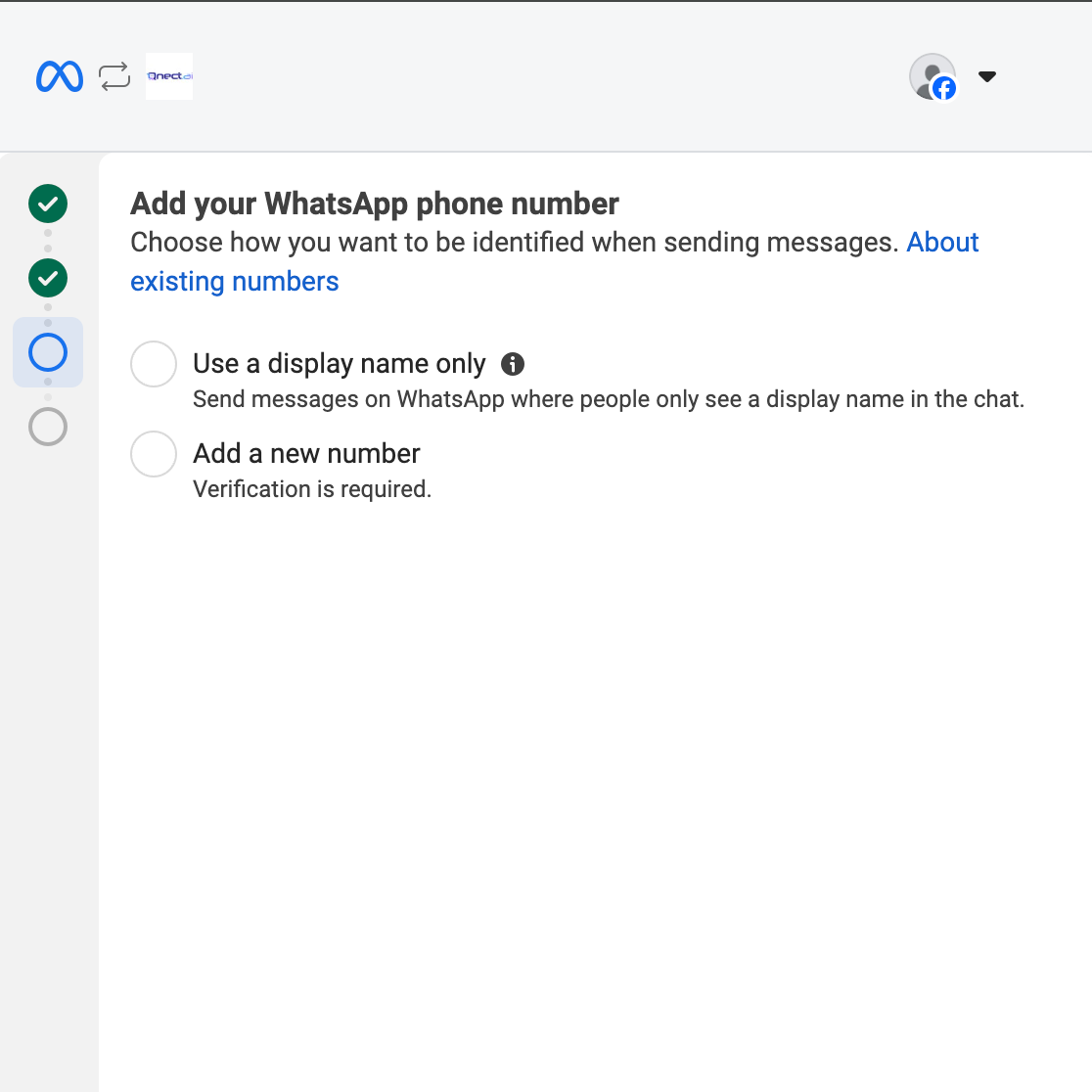
On the 'Add your WhatsApp phone number' step, select 'Add a new number'.
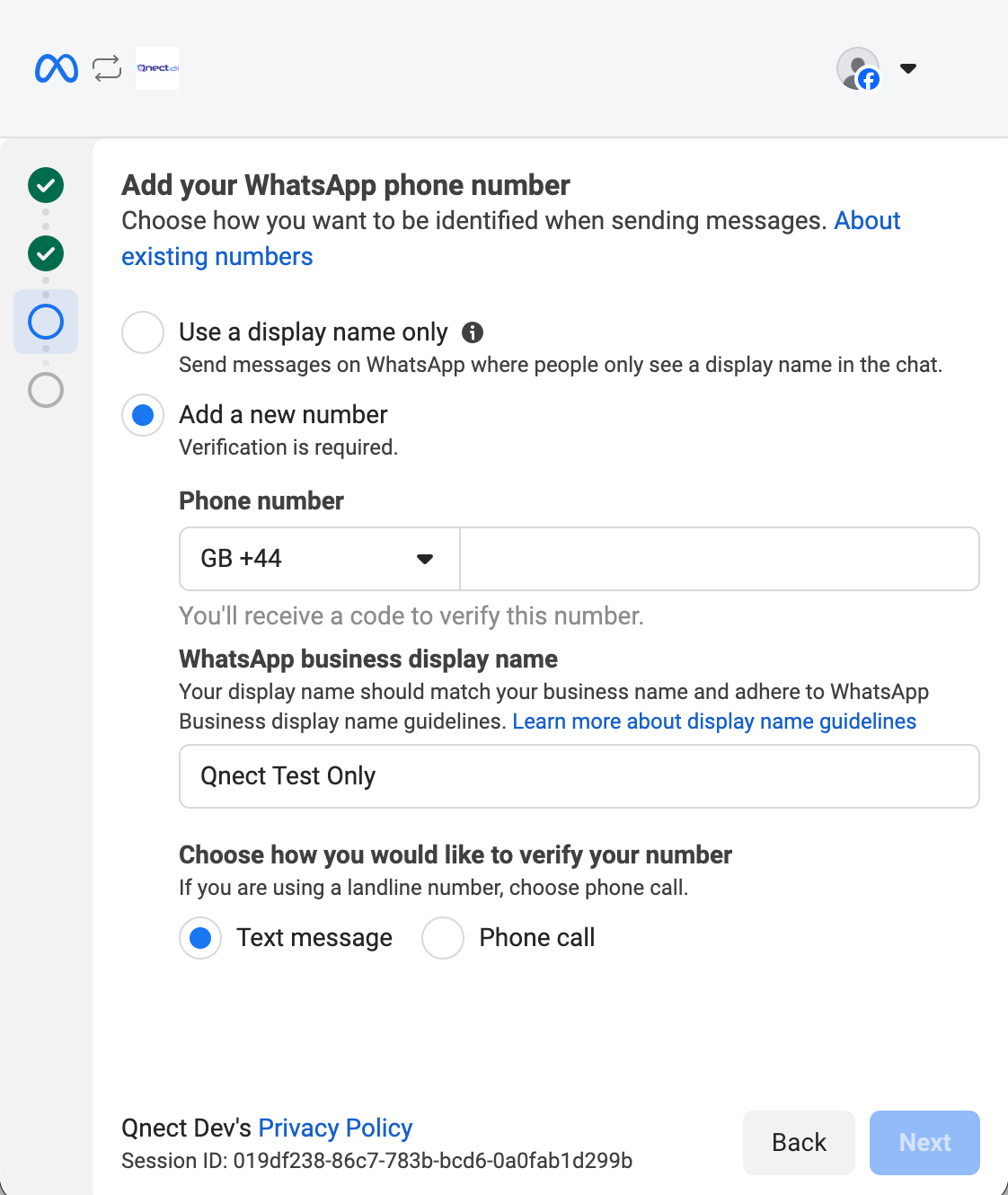
Enter or paste the selected phone number, then choose 'Text message' as the verification method.
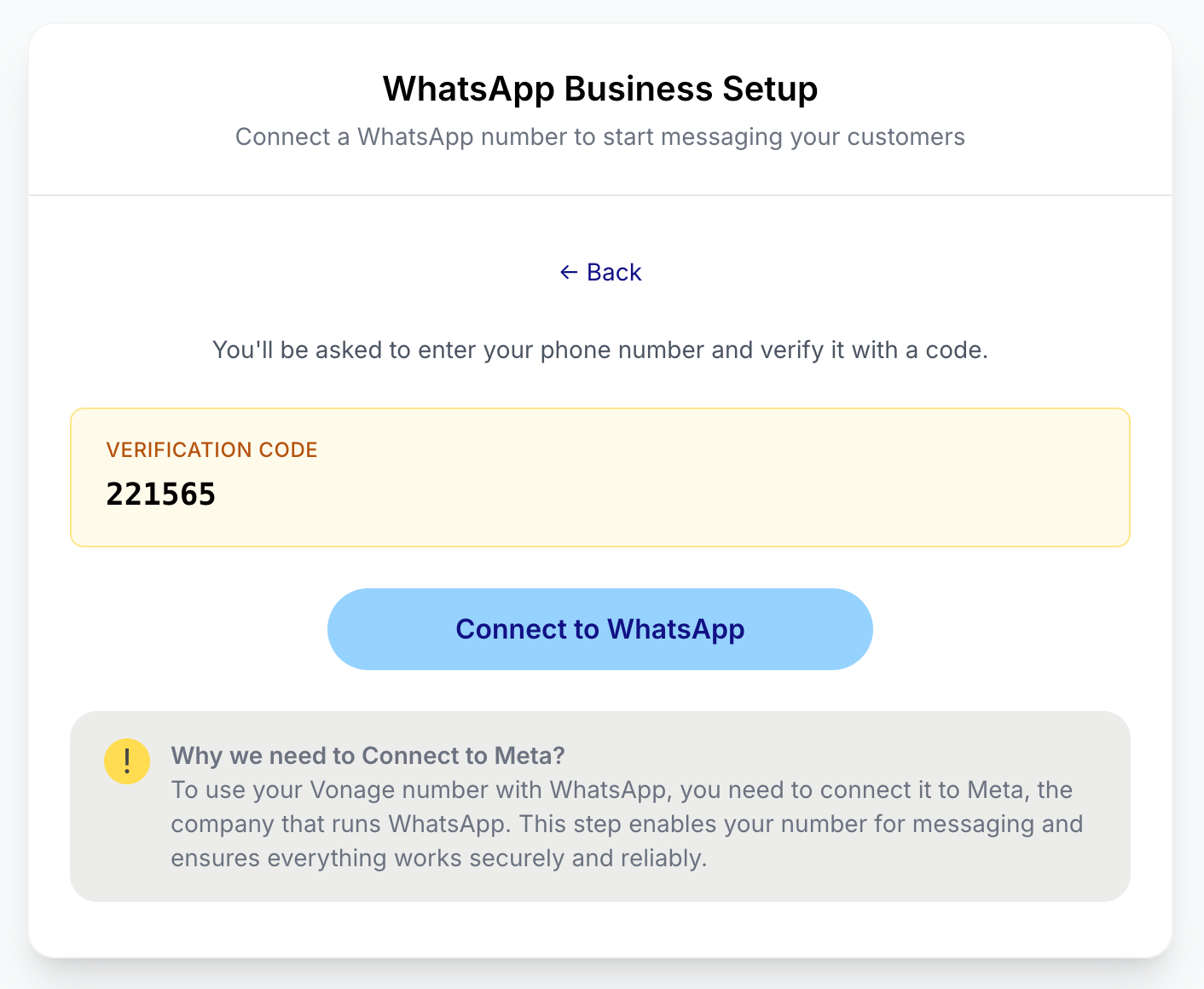
After clicking 'Next', a verification code will be shown on the onboarding screen.
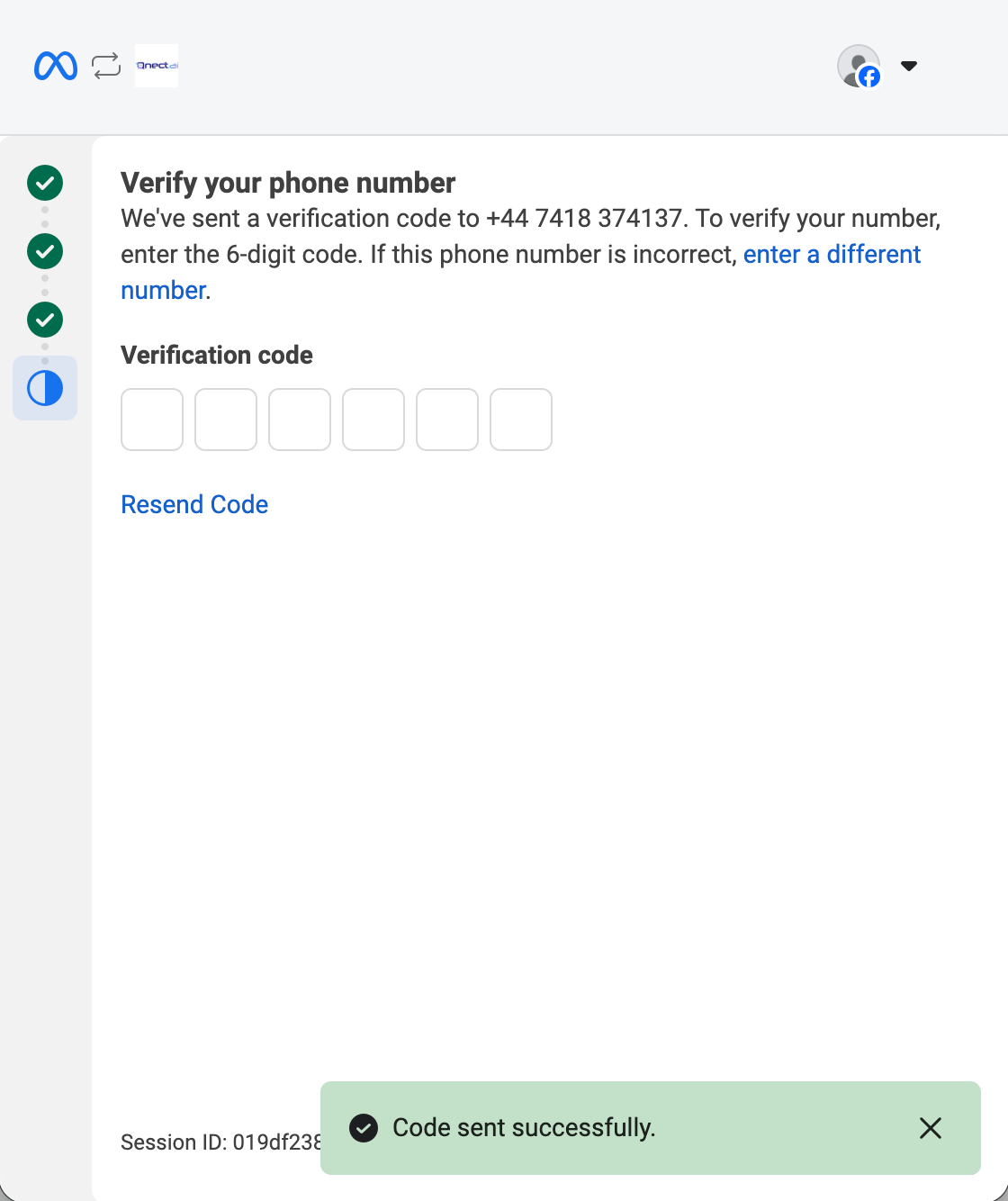
Enter the verification code on the 'Verify your phone number' screen.
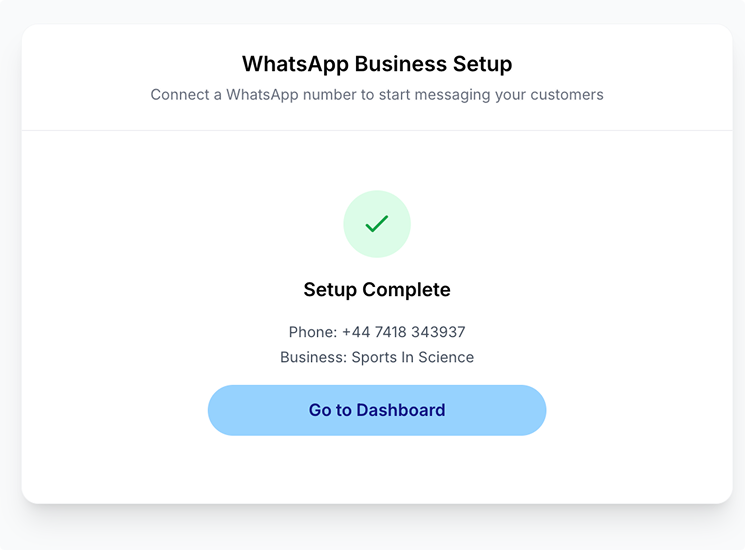
Voila, setup complete! You can now start using WhatsApp Business.
What can the AI agent do?
Your AI agent handles the full customer journey inside WhatsApp:
- Answer questions about your products or business
- Search your product catalogue based on what the customer describes
- Build and modify a shopping cart across multiple messages
- Confirm and create orders on behalf of the customer
- Process payment links
- Accept one-time and recurring donations (charity vendors)
- Escalate to a human team member if needed
How do customers find me on WhatsApp?
Each vendor gets a downloadable WhatsApp QR code from the dashboard. Share it on social media, in your shop window, on receipts, or anywhere your customers will see it. Scanning the QR code opens a WhatsApp chat directly with your AI agent.
You can also download an automatically-generated poster, which displays information and the QR code for your WhatsApp account. Head over to Settings → Vendor Settings → Poster to access this feature.